Showing posts with label Source Control. Show all posts

Thursday, August 13, 2015

Git : How to merge your silly little commits into one .

There are three kinds of git users . People who commits every single change ; People who wait and compile all the changes into one gigantic commit . And the last kind is the best kind , who commits in a responsible way. I used to be the first kind , but realized later it is annoying to the people who reviews my PR's . So i did some digging and as always git has the answer to almost all of your problems (May be not how to deal with a breakup with your girlfriend . In that case Git cannot help ya :( ) . So here is the thing , git has 2 helpful ways of dealing with this problem .


  1. Using squash mechanism
  2. Using good old git reset


Here is the scenario . Say if you made some commits with small changes like remove small space 1 , change variable name , remove space 2 . Later you realize the commits are kind of silly , you want all these commits to be merge into one called something like code cleanup .

Using squash for this problem a bit complex (not if you get used to it) . But it sort of gives you an overall idea on what is happening . This is how you do it .

Method 1 : Using squash mechanism


First of all make sure your master branch is up-to date with the related upstream branch . And say you are in a feature branch called , well feature-branch .

in your git bash , run this command git rebase -i master
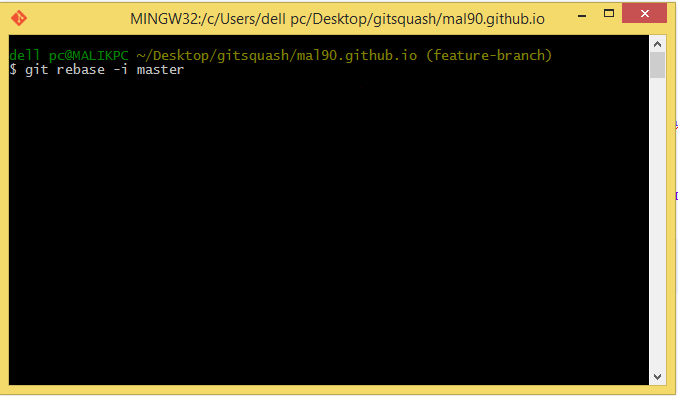


you will get the vim interactive console and you will see all of your 3 commits listed


Here the process is simple . You can pick one commit which can be your parent commit  using pick, and the rest of the commits can be linked under this parent commit using squash command . Also you can change the order of the commits as well . So according to our scenario , we can do something like this ...


So yeah that is it . Just save and exit . And you will get another interactive console like below ..


You can just skip this window by just quitting without save or you can give new names to your commits . So here i am renaming the top most commit (which is my parent commit of all 3 commits) as Code cleanup . And again save and exit .. You will see something like below ..


That's it , you have successfully merge 3 of your silly commits into one commit which is going to make a better commit history for you . Now you can just use git push origin feature-branch --force to push your single commit to the remote repository .

Note : we are using --force because this process has changed the commit hashes . In any case , when you use force push , you need to absolutely make sure you know what you are doing .

If you go to your repository and view the commit history , you can see the squashed commits like this visualized in a different way ..


So that's how you squash your commits in Git . It is a bit time consuming process , but if you get used to it , it is very useful .

Method 2 : Using good old git reset


So unlike squashing your commits , you can easily merge your little commits into one using git reset command . It is really simple . Take the same scenario i have mentioned above . Now what you need is , Taking the HEAD position 3 commits back . By doing this you are resetting the last 3 commits .

git reset --soft HEAD~3

Now you have un-stage changes . All you need to do now is to put them into a single commit

git commit -m "Code cleanup"

Or better way , merge these 2 commands into one

git reset --soft HEAD~3 && git commit -m "Code cleanup"

There you go  ! That's it . now push --force to push the new commit into the remote repository . The same warning regarding force push applies here as well .

The awesome thing about these 2 methods is that you can change the commits even after you have pushed the changes into the remote repository . So don't worry , it is never too late with git .

more info on squashing can be found here

Tuesday, July 7, 2015

When to use Git rebasing and why ?

note : My earlier post was about some of the useful commands of git and how to use them

Git rebase : introduction


Git rebase is a handy mechanism when you need merge the changes of your branch with another branch (probably with the master branch) . But the process behind a git-rebase is not that simple as the definition suggests , but it is clean and awesome . In this post , I am going to go through with the process behind a git rebase , when to use it , and when to avoid it .

Let's look at the following simple scenario..

Say you have a master branch called master .. (duh)

And you are creating a development-branch out of this master branch to do your development stuff.


And you are now working on this development-branch for sometime . You make changes , you add these changes and you commit those changes to this branch . Now after few days , you decides that it is the right time to integrate your changes to the master branch . But guess what , your team members have already pushed their changes to the master branch . So you cannot just easily merge your changes to the master without messing up the changes of your peers . Following diagram illustrates the situation


As you can see there is a gap between the branch you are working on and the master . This is where the it rebase comes in .By using git rebase you are going to integrate your changes (commit B1 , B2) with the master (Where now the head is located at commit M3) , 


Now the situation changes to something like below


When you use git rebase , the commit history (commit hashes) changes entirely . That is why i have used the green color to represent the history instead of blue (color of master's commits) or red (color of development-branch commits).

The Advantage 


It creates a linear History which is the very reason why we need to use git rebasing. Your history is clean flat and readable . You can identify the commits of each of your team members very easily in different timelines .


The Disadvantage

In a situation where you have so many people consistently pushing their changes to master and when there are so many branches being merged with the master , It is kind of a pain in the a** to keep your branch upto date with master using git rebase . You have to constantly do the rebasing , and might need to resolve conflicts time to time 

Also rewriting your commit history after each and every reabsing is not always a good thing . It means that your commit hashes change consistently and also , you need to force push every time to the remote after a rebase

When to use git rebase : Only when you need a clean linear history so that you can clearly see what is going on with the all the commits from all the team members


When not to use : If you prefer to follow a simple mechanism where you can integrate your changes with the upstream branch without a fuss you can always go with git merge 


Saturday, June 27, 2015

Useful git commands

Lets have a look at some of the useful git commands 


Get a clone of the remote repository

  • git clone <remote repository link>

Get a pull from the remote branch

  • git pull <remote branch name>

Get a pull from the remote branch and rebase the remote branch with the local branch

  • git pull --rebase origin <branch name>

Get all the branches from the remote repository 

  • git fetch --all


Push the changes to remote

  • git push origin <branch-name>
  • git push origin <branch-name> --force #force push the changes


Checkout a branch

  • git checkout <branch name>

Checkout a new branch from the current branch

  • git checkout -b <branch name>

Add a file to commit

  • git add  <filename> #Adds 1 file
  • git add --all #Adds all the files including tracked and un-tracked files

Commit with a message

  • git commit -m "message name"

Stash the current changes and make branch pristine

  • git stash

Un-stash the last changes which were stashed ( hence make the branch dirty)

  • git stash apply

Delete branch


  • git push :<branchname> # delete remote branch name
  • git branch -d <branchname> #delete local branch name
  • git branch -D<branchname>#force delete local branch name 


Change the last commit message 

  • git commit --amend -m "New commit message"


Change remote branch name 

  • git branch <new-branch-name> <origin old-branch-name> #change remote branch name with the new name
  • git push origin <new-branch-name> #push the new branch with the new name
  • git push origin :<old-branch-name> #delete the old branch branch
  • git push -D <old-branch-name>


Change local branch name

  • git branch -m <old-branch-name> <new-branch-name> #If you want to rename any branch
  • git branch -m <new-branch-name> #If you want to change the current branch


Reset last commit 


  • git reset --hard HEAD~1
  • git push origin <branch-name> --force # This step will push the reverted changes back to the remote


Reset last commit but keep the changes in local branch

  • git reset HEAD~1


Rebase your current branch changes with the local master branch

  • git rebase origin/master


Merge your changes with the master branch

  • git merge <branch-name> --no-ff  #Creates a commit for merge and does the merge with fast-forward mechanism


Get git commit history in a compact way

  • git log oneline